


Your product is live, but customers can’t find it. This complete troubleshooting guide walks you through every reason your Amazon listing may be invisible in search , and exactly what to do to restore your visibility today.
Introduction
Why Amazon Listing Visibility Is Everything for Sellers
If your Amazon listing is not showing up in search results, you are effectively invisible to the more than 300 million active Amazon customers who rely on search to discover products every day. Unlike a brick-and-mortar store where foot traffic can still bring in walk-in buyers, a suppressed or de-indexed Amazon listing means zero organic exposure, zero clicks, and zero sales — no matter how good your product actually is.
The frustrating reality is that Amazon listing visibility issues are far more common than most sellers realize. Your product listing can disappear from Amazon search for dozens of reasons, ranging from a minor content error flagged by Amazon’s automated systems to a serious account health violation that requires formal appeal. In either case, the damage to your revenue and your product ranking accumulates with every hour your listing remains invisible.
70%of Amazon clicks go to the first page of results
63%of product searches start on Amazon, not Google
35%of seller accounts have experienced at least one suppressed listing
This guide covers every known reason an Amazon product listing may not appear in search, along with actionable, step-by-step fixes for each scenario. Whether your listing is suppressed, inactive, de-indexed, or simply buried beyond page ten, this troubleshooting resource will help you identify the root cause and resolve it efficiently.
Reason 01
Your Amazon Listing Is Suppressed or Stranded
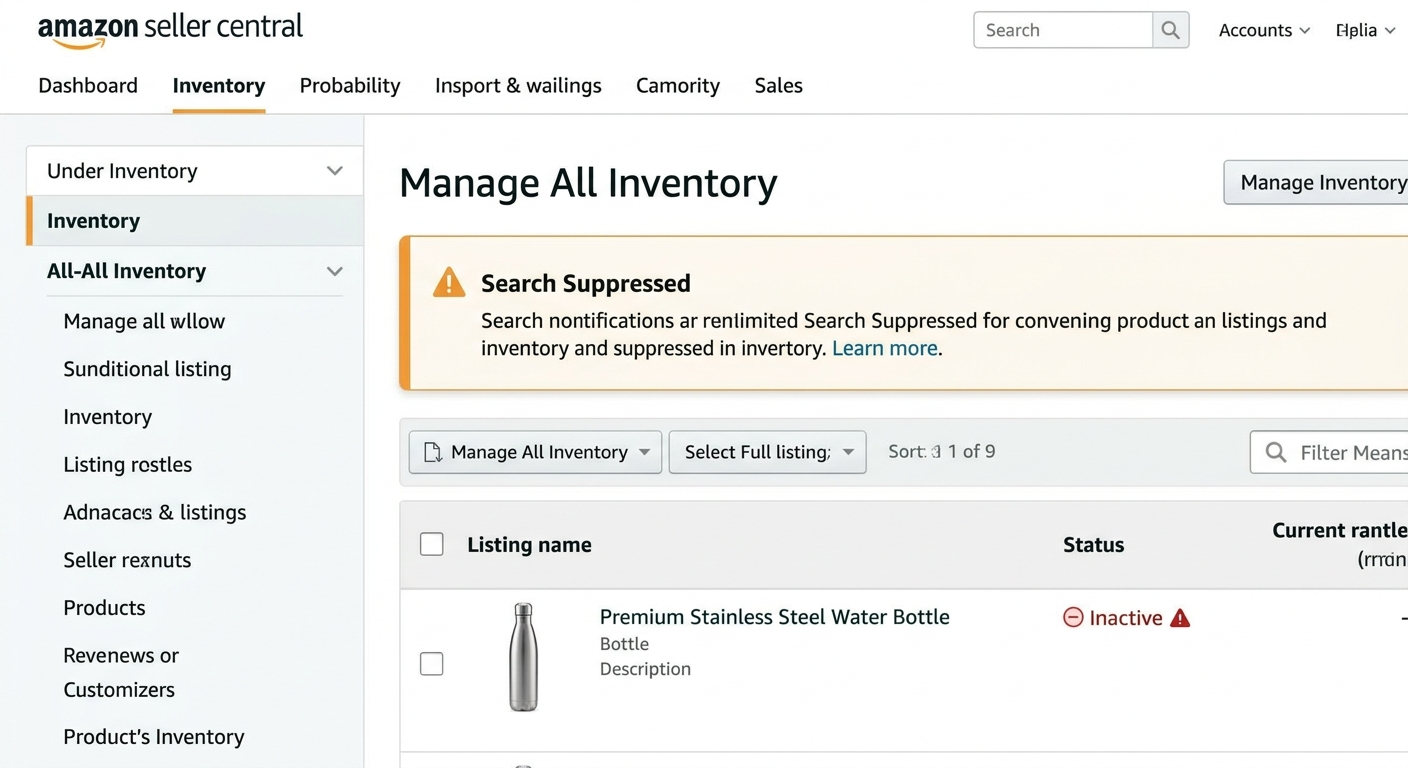
The most common reason an Amazon listing is not showing is suppression. Amazon suppresses listings automatically when its systems detect that a required attribute is missing or that the listing fails to meet category-specific content standards. A suppressed listing is technically still in your Seller Central account , it simply cannot be found by customers in search, and it will not appear on product detail pages.
Amazon suppresses listings for a wide variety of content issues. The most frequently cited causes include a missing or non-compliant main image, absent product descriptions, incomplete bullet points, missing dimensions or weight data, and category-specific required attributes that have not been filled in. Amazon’s algorithms perform constant quality sweeps, which means a listing that was perfectly fine last month can be suppressed today if Amazon updates its content requirements for your category without advance notice to sellers.
⚠ What is a Stranded Listing?
A stranded listing is slightly different from a suppressed listing. It means your inventory exists in FBA but has no active listing associated with it , usually because the listing was removed or became inactive. Stranded inventory appears in Seller Central under Inventory → Fix Stranded Inventory. Amazon will eventually charge you removal fees for long-term stranded FBA inventory if it isn’t resolved.
How to Fix a Suppressed Amazon Listing
To identify and fix your suppressed listings navigate to Inventory → Manage All Inventory in Seller Central, then apply the filter to show only “Suppressed” listings. Amazon will display the specific reason for each suppression alongside the affected ASIN. Click “Edit” next to the listing and correct every flagged attribute. Once saved, Amazon’s systems typically review and restore compliant listings within 24 to 72 hours, though some categories may take longer during peak periods.
Pay particular attention to your main product image when troubleshooting suppression. Amazon requires that main images feature the product on a pure white background (RGB 255, 255, 255), with no watermarks, promotional text, or borders. A main image that violates these standards is consistently one of the top triggers for automatic suppression across all product categories. Review Amazon’s image requirements for your specific category carefully, as apparel, jewelry, and consumable products each carry their own additional image guidelines.
Reason 02
Policy Violations and Restricted Product Categories
Amazon operates under a complex and frequently updated set of selling policies, and a listing that violates Amazon’s product compliance rules will be removed from search results , or removed from the platform entirely , without prior warning. Policy-based listing removals are among the most serious visibility issues sellers face, as they often require formal appeals and documentation to resolve.
The most common policy-related reasons your Amazon listing may not be showing include prohibited product claims (especially in health, supplements, and beauty categories), intellectual property complaints filed by brand owners, listing in a restricted category without prior approval, and using misleading or prohibited keywords in your title, bullet points, or backend search terms. Amazon’s system actively scans listing content for phrases that make unverified medical claims, imply FDA-approval without documentation, or use competitor brand names in ways that violate trademark policy.
“A single prohibited claim buried in your backend keywords is enough to get your entire listing removed from Amazon search , often without any notification to the seller.”
If your listing has been removed for a policy violation, you will typically receive a notification in your Seller Central Performance Notifications and via the email address on your account. The notification will reference the specific policy that was violated and may include an option to appeal through the Account Health Dashboard. When submitting an appeal, be precise, factual, and include a detailed Plan of Action (POA) that acknowledges the root cause, outlines the corrective steps already taken, and explains how you will prevent recurrence.
Sellers who list products in gated or restricted categories without obtaining prior approval will also find their listings invisible to search. Restricted categories on Amazon include Grocery & Gourmet Foods, Fine Jewelry, Collectibles, Automotive parts, and many more. To check whether your category requires approval, navigate to Inventory → Add a Product in Seller Central and search for your category , a lock icon indicates you need to apply for approval before your listing can become active.
Reason 03
Poor Amazon SEO and Keyword Indexing Problems
Even if your listing is technically active and fully compliant, it may still be functionally invisible if it is not properly indexed for the keywords customers are searching. Amazon keyword indexing determines whether your product appears when a shopper types a relevant search query into Amazon’s search bar. If your listing is not indexed for a keyword, it simply will not show in results for that term , regardless of your price, reviews, or sales rank.
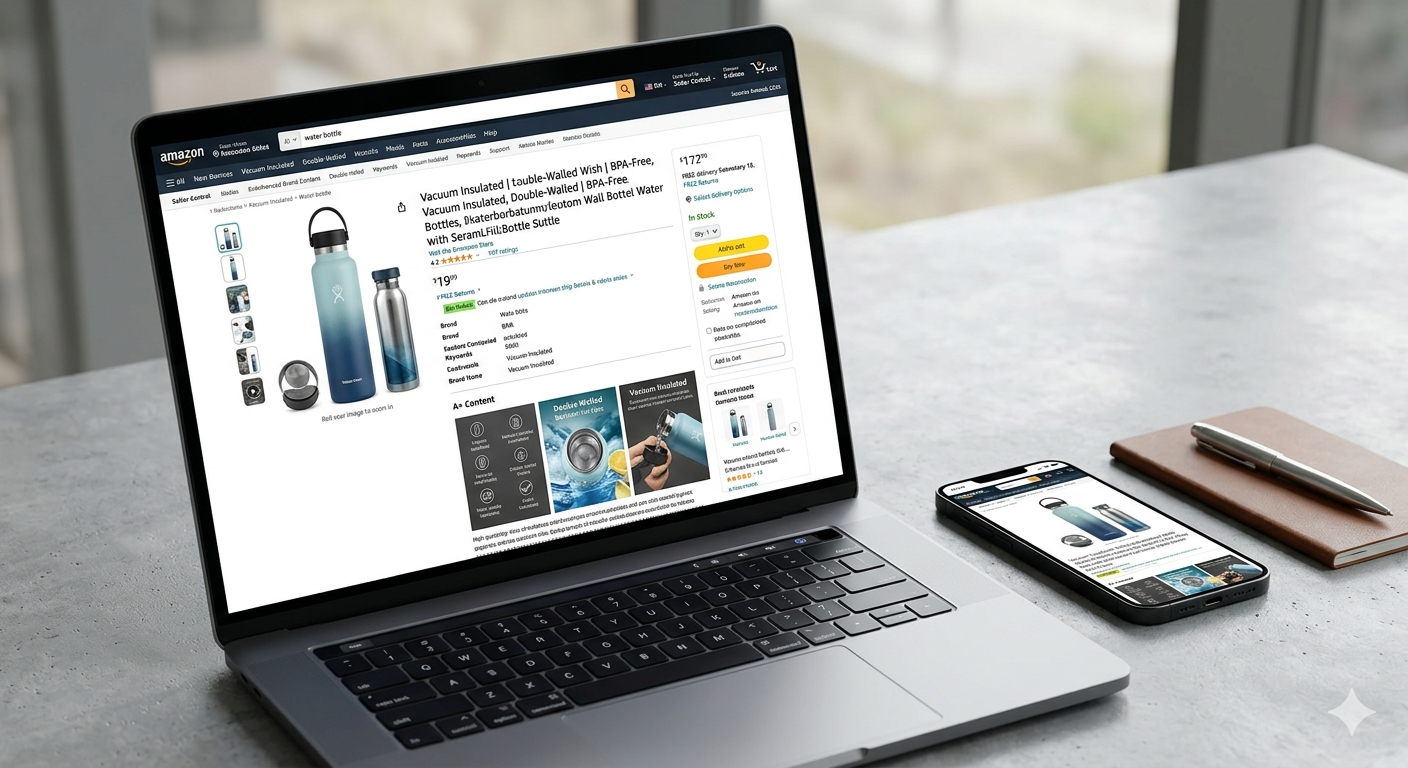
Amazon’s A9 search algorithm indexes your listing based on the keywords present in your product title, bullet points, product description, backend search terms, and subject matter fields. The algorithm prioritizes keyword placement in the product title above all other fields, which is why strategic title optimization is the single highest-impact SEO action most sellers can take. A well-optimized Amazon product title should lead with your primary keyword, include the product’s key features or variants, and stay within Amazon’s character limit for your category , typically 150 to 200 characters for most categories.
Amazon SEO Quick-Fix Checklist
• Confirm your primary keyword appears in the first 80 characters of your product title
• Include 5 fully written bullet points that each target a distinct secondary keyword naturally
• Fill all 250 bytes of backend search terms with relevant, non-duplicate keywords
• Do not repeat keywords already in the title inside your backend terms , use that space for additional variations
• Use Amazon’s “Check Keywords” tool (via ASIN in Seller Central) to verify specific keyword indexing
• Avoid using competitor brand names, ASINs, or promotional language in any field
• Write a full product description using A+ Content if you are brand registered , it signals content quality to Amazon’s algorithm
• Check your Subject Matter and Intended Use fields in the listing attributes , these are often overlooked indexing opportunities
One of the most commonly overlooked Amazon SEO issues is the use of duplicate keywords across listing fields. Many sellers repeat their primary keyword in the title, bullets, and backend search terms, believing that repetition strengthens indexing. In reality, Amazon’s algorithm only needs to see a keyword once to index your listing for it. Every duplicated keyword in your backend terms wastes a valuable byte that could have been used for a unique long-tail keyword variation. Use that space wisely by researching related phrases, synonyms, and common misspellings that customers actually type.
Additionally, watch for keyword stuffing penalties. Forcing keywords unnaturally into your title or bullets in ways that make the copy difficult to read signals low quality to Amazon’s algorithm. Amazon increasingly rewards listings with high-converting copy over listings that prioritize keyword density at the expense of readability. Your ultimate goal is to write listing content that satisfies both Amazon’s indexing requirements and the real human customer who is reading it.
Reason 04
Account Health Issues Suppressing Your Listings
Your individual listing’s visibility is directly tied to the overall health of your Amazon seller account. When your Amazon Account Health deteriorates , whether due to high order defect rates, late shipment rates, policy violation counts, or negative customer feedback , Amazon can and does suppress all of your listings, not just the ones directly implicated. This is one of the most disruptive visibility issues a seller can face, as it can affect an entire catalog simultaneously.
The metrics that Amazon uses to evaluate account health include your Order Defect Rate (ODR), which must remain below 1%; your Late Shipment Rate (LSR), which must stay below 4%; your Pre-Fulfillment Cancellation Rate, which should stay below 2.5%; and your overall Policy Compliance score in the Account Health Dashboard. Sellers using FBA (Fulfillment by Amazon) generally face less risk from shipping-related metrics since Amazon manages fulfillment on their behalf, but FBA sellers are still responsible for listing quality and policy compliance metrics.
Account Health : What to Watch
Navigate to Performance → Account Health in Seller Central to review your current metrics. Any metric shown in amber or red is actively impacting your eligibility to sell and may already be suppressing specific listings. Do not wait for Amazon to notify you , check your Account Health Dashboard weekly as standard practice.
If your account is at risk of deactivation, contact Amazon Seller Support immediately and prepare a comprehensive Plan of Action (POA) addressing each flagged metric before your account suspension date.
Reason 05
Inventory and Availability Issues
A listing with zero available inventory , whether in your FBA warehouse or in your merchant-fulfilled stock , will typically be suppressed from Amazon search results or will appear so low in rankings that it is functionally invisible to customers. Amazon’s primary goal is to surface products that shoppers can actually receive quickly, which means out-of-stock listings are deprioritized in A9 algorithm ranking with little to no placement in standard search results.
For FBA sellers, this issue most commonly arises from poor inventory forecasting , running out of stock during high-demand periods like Q4, Prime Day, or promotional campaigns. The damage from running out of stock extends beyond the zero-inventory period itself: Amazon’s algorithm factors in your historical in-stock rate as part of its ranking criteria, which means that repeatedly going out of stock can permanently suppress your listing’s search ranking even after you restock. Maintaining a healthy inventory buffer, using Amazon’s restock recommendations in Seller Central, and setting reorder alerts at conservative thresholds are the most reliable ways to protect your listing’s long-term visibility.
For merchant-fulfilled sellers, a listing may appear inactive if your seller account’s shipping settings are not configured properly, if your handling time is set to an unusually long duration, or if you have enabled a vacation/inactive mode in Seller Central and forgotten to deactivate it. Always verify your listing’s availability status by checking your Manage Inventory dashboard and confirming that the listing shows as “Active” with a quantity greater than zero.
Reason 06
Buy Box Loss and Its Effect on Listing Visibility
Losing the Amazon Buy Box does not make your listing disappear entirely, but it has a devastating practical effect on your visibility because the overwhelming majority of Amazon purchases , industry estimates consistently place this figure above 80% , are completed through the Buy Box. When another seller wins the Buy Box on your ASIN, or when Amazon suppresses the Buy Box entirely due to pricing concerns, your listing becomes dramatically harder to find and convert.
Amazon awards the Buy Box based on a composite score that weighs seller performance metrics, price competitiveness (including shipping cost), fulfillment method, and delivery speed. FBA listings have a structural advantage in Buy Box eligibility due to Amazon’s preference for Prime-eligible, two-day delivery products. Sellers who fulfil their own orders can still win the Buy Box, but must maintain exceptionally strong performance metrics and competitive pricing to do so consistently.
A particularly common but overlooked Buy Box issue is Amazon’s price parity suppression. If Amazon’s automated systems detect that your product is available at a lower price on another e-commerce platform , your own website, Walmart, eBay, or elsewhere , Amazon may suppress the Buy Box on your listing as a form of pricing enforcement. This can cause your listing to appear inactive even though your account and listing are fully compliant. Monitor your prices across all channels and ensure Amazon consistently reflects your most competitive price to avoid triggering this suppression mechanism.